To add new rooms, please:
- Log in to your account
- Enter your email address and password
- Click “My Listing” top right of page
- Click on the Room tab of the navigation menu
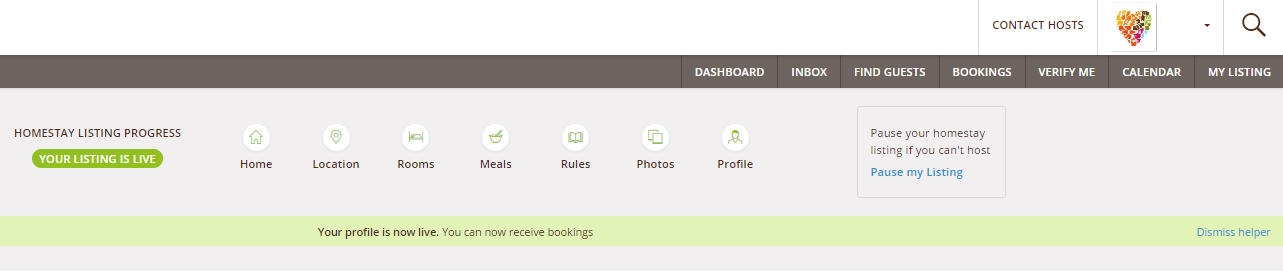
- Click on Add Bedroom, enter the bedroom details, such as bedroom name, nightly rate, bed type and the number of guests this room can sleep
- Click on Save Details
To change the information about an existing room:
- Click on the Room tab of the navigation menu
- Click on Edit Details of the selected room
- Add or change the information provided, and check carefully that the facilities selected are correct
- Click on Save Details
To change the prices of an existing room
- Click on the Prices tab in My Listing
- Go to the room you want to edit.
- Add or change your nightly, weekly and monthly prices, for 1 person or 2 or more people.
- Click on Save Details once completed

To delete an existing picture and/or add a new bedroom picture:
- Click on the Rooms tab of the navigation menu
- Click on the Bin on the bottom part of the picture you want to delete
- Click on the empty box to add a new picture.

- Click on Save Details at the end or all your changes will be lost.
On this section, you can add only one picture for room: if you wish to add more pictures of the same room, you can do that going back and clicking on the Homestay Tab and then on Edit Photos.
Comments